The fastest way to get AI notes on a Zoom call is to turn on My Notes inside your Zoom settings. It transcribes the conversation, writes a summary, and flags action items without any extra software. If you’re on a live sales call and need help during the conversation, not after it, that’s a different job entirely, and it’s where a real-time coaching layer like Getcoachmode comes in.
- Right now: Open Zoom, go to Settings, and enable AI Companion or My Notes before your next meeting.
- This week: Decide if you need a third-party assistant for CRM syncing or deeper analytics.
- For sales calls: Add live coaching if you need in-the-moment objection help, not just a recap afterward.
Zoom’s My Notes feature generates summaries and action items automatically, and on certain plan tiers it caps how many AI-generated summaries you get per month. Check your tier before you assume unlimited access.
Key Takeaways
Getting reliable AI output from Zoom calls means matching the tool to the job: transcription and summaries for the record, agentic workflows for automation, and live coaching for in-call performance.
| Point | Details |
|---|---|
| Start with built-in AI | Enable Zoom’s My Notes first; it covers transcription, summaries, and action items at no extra cost on many plans. |
| Check plan limits | Confirm monthly AI-use caps, meeting length limits, and seat versus host pricing before adding a third-party app. |
| Match tool to job | Use transcription apps for records, agentic tools like ZoomMate for automated follow-ups, not for real-time help. |
| Fix audio before software | A dedicated microphone and one-speaker-at-a-time habits fix more transcription errors than switching tools does. |
| Add coaching for live sales calls | Getcoachmode supplies real-time objection responses and post-call scoring that note-taking apps can’t provide. |
Table of Contents
- AI for Zoom Calls: What Each Feature Actually Does
- How Do You Enable AI Notes in Zoom?
- What Do Zoom’s AI Plans Actually Cost?
- Is It Safe to Record and Transcribe a Zoom Call?
- Which AI Approach Fits Your Zoom Calls?
- When Does Live Coaching Beat a Note-Taking App?
- Otter.ai and Fireflies.ai: How Do They Compare?
- Does AI Transcription Work Well in Every Language and Accent?
- How Can You Improve Zoom AI Transcription Accuracy?
- What Most Guides Get Wrong About AI on Zoom Calls
- Add Real-Time Coaching to Your Zoom Sales Calls
- Sources
AI for Zoom Calls: What Each Feature Actually Does
Most people asking about AI for Zoom calls really want one of four things: an accurate record of what was said, a summary they don’t have to write themselves, automatic follow-ups, or help mid-conversation. Each requires a different tool, and confusing them is the most common mistake professionals make when picking software.
Real-time transcription and speaker attribution. This is the baseline. Zoom’s built-in transcription and most third-party apps label who said what, though accuracy dips with overlapping speech, heavy accents, or multiple people on one microphone. Expect strong results in quiet, single-speaker-at-a-time meetings and noticeably rougher output in group brainstorms.
Automated summaries and action-item extraction. My Notes turn a 45-minute call into a paragraph of highlights plus a bulleted list of who owes what. This is the single biggest time-saver for professionals who currently write their own recap emails.

Agentic and context-aware features. This is where things get genuinely useful instead of just convenient. ZoomMate connects meeting output to tools like Salesforce and Google Drive, so a decision made on a call can trigger a task somewhere else automatically. Context awareness, pulling in your calendar, CRM history, or shared docs, is what separates a basic transcript tool from an assistant that actually understands the meeting’s stakes.
Live coaching versus passive note-taking. Everything above happens during or after the call, but none of it helps you in the moment when a prospect throws an objection you weren’t ready for. That’s a fundamentally different feature set: real-time suggested responses instead of a summary you read later.
- Transcription tools answer: “What was said?”
- Summary tools answer: “What do I need to remember or do?”
- Agentic tools answer: “What can I automate from this?”
- Live coaching answers: “What do I say right now?”
Platform vendors are increasingly bundling this into their suites. Microsoft Copilot for Microsoft 365 and Google’s Gemini in Meet follow the same pattern Zoom does: native AI baked into the productivity suite you already pay for, competing against standalone apps that specialize in one piece of the puzzle.
How Do You Enable AI Notes in Zoom?
Getting AI working on your next call takes about five minutes, whether you use Zoom’s own tools or add a third-party app.
- Open Zoom settings and look for AI Companion or My Notes under the meeting or account settings tab. Zoom’s support documentation walks through exact toggle locations, which shift occasionally as Zoom updates its interface.
- Turn on transcription and summary generation before the meeting starts. Some admin accounts require this to be enabled at the account level first.
- Install a third-party assistant if you need it, such as Read, which joins the meeting directly and asks for permission to access the call feed. Expect a permissions prompt covering calendar access, recording, and sometimes file storage.
- During the call, most assistants let you manually flag a moment as important or ask for a live summary without breaking your flow.
- After the call, transcripts and summaries land in the app’s dashboard or your Zoom Hub. Most tools let you export to Slack, push action items to a CRM, or email the recap automatically.
Common snags: speaker labels get scrambled when two people talk over each other, transcription can stall if your internet connection drops mid-meeting, and some plans quietly cap the number of AI summaries you get per month, so a heavy user can burn through the allowance by week two.
Pro Tip: Test your AI note taker on a solo call with yourself before relying on it for a client meeting. It’s the fastest way to catch permission errors or audio routing problems before they cost you a real transcript.
What Do Zoom’s AI Plans Actually Cost?
Pricing for AI on Zoom calls isn’t one flat number. It depends on whether the feature lives inside your Zoom plan or comes from a separate app you’re layering on top.
- Zoom bundles My Notes and basic AI summaries into several Workplace tiers, but lower tiers can limit how many AI-generated summaries you get monthly.
- Third-party assistants often use their own seat-based pricing, separate from your Zoom bill entirely.
- Meeting length and meeting-count caps are common on entry tiers. A roundup of AI meeting assistants from Zapier notes that lower-tier plans frequently cap hosted meetings to a limited number per month, with unlimited summaries reserved for paid upgrades.
- Seat-based versus host-based licensing changes your math fast if your whole team needs access versus just the person scheduling the call.
Before you buy anything, confirm four things: how many AI credits or summaries you actually get per month, how long transcripts and recordings are retained, whether pricing is per seat or per host, and whether the plan includes the integrations you actually need (CRM, Slack, calendar). A cheap plan with a 10-meeting cap is expensive fast if you’re on back-to-back calls every day.
Enterprise teams often lean toward Zoom’s native tools specifically because admin controls and data residency are simpler to manage than juggling a third-party vendor’s separate compliance posture, according to Zapier’s assistant roundup.
Is It Safe to Record and Transcribe a Zoom Call?
Every AI note taker on a Zoom call is functionally a recording device, and that carries real obligations, not just technical ones.
- Zoom displays a recording notice when transcription or recording starts. Confirm it’s showing, and never assume participants already know an AI tool is listening.
- Transcripts land either in Zoom’s own storage or a third-party app’s servers, depending on which tool you use. Check retention settings, since some apps keep transcripts indefinitely by default.
- Third-party apps request permissions before joining, calendar access, recording rights, sometimes file storage. Read and similar tools typically notify participants when the assistant joins the call, which matters for consent.
- For regulated industries (legal, healthcare, financial services), loop in IT or compliance before adding any third-party AI tool to client calls.
Pro Tip: If you’re on a sales or client call where confidentiality matters, use a meeting-only agent that loses access the moment the call ends, rather than a tool with standing calendar and file permissions running in the background.
Which AI Approach Fits Your Zoom Calls?
Pick your tool by starting with the actual job, not the feature list.
- Name your primary goal. Verbatim transcripts, a tight summary, automated follow-ups, or real-time help during the call are four different products, even when marketing pages blur the line.
- Map your integrations. If action items need to land in Salesforce or HubSpot automatically, prioritize agentic tools like ZoomMate over a standalone transcription app that just sits in its own dashboard.
- Separate real-time from post-meeting needs. Note-taking assistants are built for capture and recap. Live coaching is built for the 15 seconds after a prospect says “it’s too expensive” and you need the right words immediately, not a summary an hour later.
- Check the budget math. Per-seat pricing punishes growing teams; per-host pricing punishes solo operators paying for everyone else’s usage. Confirm which model a tool uses before committing.
- Confirm security fit. Regulated meetings need retention controls and admin oversight that casual note-taking apps sometimes skip entirely.
- Choose built-in Zoom AI if you want the simplest setup with no new app to manage.
- Choose a third-party assistant if you need deeper CRM syncing or richer engagement analytics.
- Choose live coaching if your calls involve objection handling, discovery, or high-stakes persuasion where the words you say in the moment decide the outcome.
When Does Live Coaching Beat a Note-Taking App?
A transcript tells you what happened. It never tells you what to say when a buyer pushes back mid-sentence, and for sales professionals, that gap is where deals are actually won or lost.
Live coaching that suggests phrasing during a call changes outcomes more directly than a summary does after the fact. The two are complementary, not interchangeable, according to Getcoachmode.
Getcoachmode listens to the live conversation and surfaces the right response the instant an objection lands, rather than logging it for a debrief you’ll have three days later. That distinction matters because real-time coaching systems have to operate under strict latency constraints. Suggestions need to appear unobtrusively and almost instantly, or they arrive too late to be useful in a fast-moving objection.
Where this fits into a sales team’s stack:
- A rep fumbling price objections gets a suggested response the moment “too expensive” comes up, instead of coaching notes reviewed after the deal has cooled.
- Discovery calls get tracked for buying signals in real time, not reconstructed from a transcript afterward.
- Every call gets a post-call grade, so managers see skill trends across a rep’s calls instead of guessing from spot-checks.
Pair this with a standard note-taking assistant for the paper trail, and use Getcoachmode’s AI sales coaching for the moments that actually decide whether the deal closes.
Otter.ai and Fireflies.ai: How Do They Compare?
Two names come up constantly in any search for AI note takers on Zoom, and they solve slightly different problems.
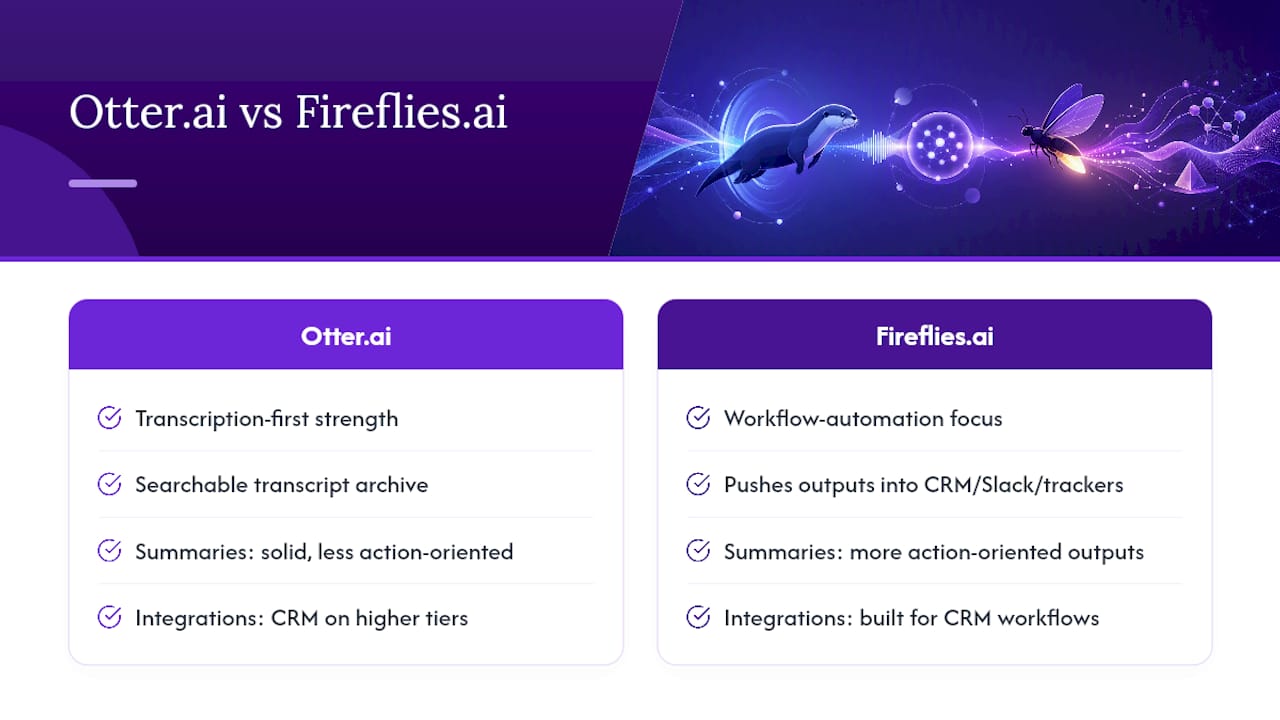
Otter.ai built its reputation on transcription accuracy and a clean, searchable transcript archive. It’s strong for professionals who need to search back through weeks of meetings for a specific quote or decision. Its summaries are solid but less action-oriented than some rivals, and its deeper CRM integrations sit behind higher-tier plans.
Fireflies.ai leans harder into workflow automation, pushing meeting outputs into CRM fields, Slack channels, and project trackers automatically. Teams that live inside a CRM day to day tend to prefer it for that reason. The tradeoff is that its transcription can feel slightly less polished on messy, multi-speaker audio compared with dedicated transcription-first tools.
Neither replaces what Zoom’s own My Notes or ZoomMate already does natively, they layer on top, usually for teams who’ve outgrown Zoom’s built-in limits or need integrations Zoom doesn’t offer out of the box. And neither one helps you mid-call. Both are fundamentally after-the-fact tools: you get a transcript and a summary once the meeting ends, not guidance while you’re still talking. If your calls are sales conversations where the outcome hinges on how you handle pushback in real time, that gap is worth noticing before you commit to either.
Does AI Transcription Work Well in Every Language and Accent?
Accuracy on Zoom AI transcription is not uniform, and professionals relying on it for non-English calls or heavy regional accents need to plan around that reality rather than assume parity.
English transcription, particularly standard American and British accents, tends to perform the most consistently across major tools. Accuracy drops noticeably with strong regional accents, fast speech, technical jargon, and especially with overlapping speakers talking over each other. Non-English languages vary widely by tool. Some assistants support dozens of languages well; others handle only a handful reliably, and quality within a supported language can still lag behind English.
Background noise, poor microphone quality, and multiple people sharing one device microphone compound every one of these problems. A perfectly clear English speaker on a bad connection can produce a worse transcript than a heavily accented speaker on a good one.
The practical takeaway: if your calls regularly involve multiple languages, strong accents, or industry-specific terminology, test your chosen tool on a real sample call before trusting it for something that matters, a client deliverable, a legal record, or notes you’ll rely on weeks later. Don’t assume the marketing page’s accuracy claims apply evenly to every voice in your organization.
How Can You Improve Zoom AI Transcription Accuracy?
Most transcription failures trace back to audio setup, not the AI model itself, and small changes fix a surprising amount of it.
- Use a dedicated microphone, even a basic USB one, instead of a laptop’s built-in mic, which picks up keyboard clatter and room echo.
- Speak one at a time. Overlapping speech is the single biggest cause of scrambled speaker labels and dropped words.
- Reduce background noise by closing windows, muting when not speaking, and avoiding speakerphone setups where possible.
- State names out loud at the start of a meeting so speaker attribution has a clean reference point early on.
- Avoid rapid-fire cross-talk in fast-moving discussions; a half-second pause between speakers dramatically improves attribution accuracy.
- Test your setup on a solo call first, the same habit worth building before any client meeting.
None of this requires new software. It’s the same advice a podcast producer would give, and it consistently outperforms switching to a “more accurate” AI tool while ignoring a bad microphone setup.
What Most Guides Get Wrong About AI on Zoom Calls
Most roundups treat “AI for Zoom calls” as one category, when it’s really three separate jobs wearing the same marketing language. A transcript tool, a summary generator, and a live coach solve different problems, and buying the wrong one feels like the AI “isn’t working” when really it was never built for what you needed.
The overlooked point: post-meeting summaries are backward-looking by design. They’re excellent for record-keeping and follow-ups, but useless in the 10 seconds after a prospect says “send me something in writing” and you need to respond well right now. Sales professionals especially tend to buy a note-taker expecting it to help them perform better in the room, and it simply can’t. That’s a live-coaching problem, not a transcription problem.
If you take one thing from this guide, prioritize matching the tool to the moment: capture tools for the record, agentic tools for automation, and live coaching for the seconds that actually decide whether a deal closes.
— Ryan
Add Real-Time Coaching to Your Zoom Sales Calls
Note-taking apps tell you what happened after the call ends. Getcoachmode tells you what to say while the call is still happening, which is the difference between reviewing a lost objection and actually winning it.
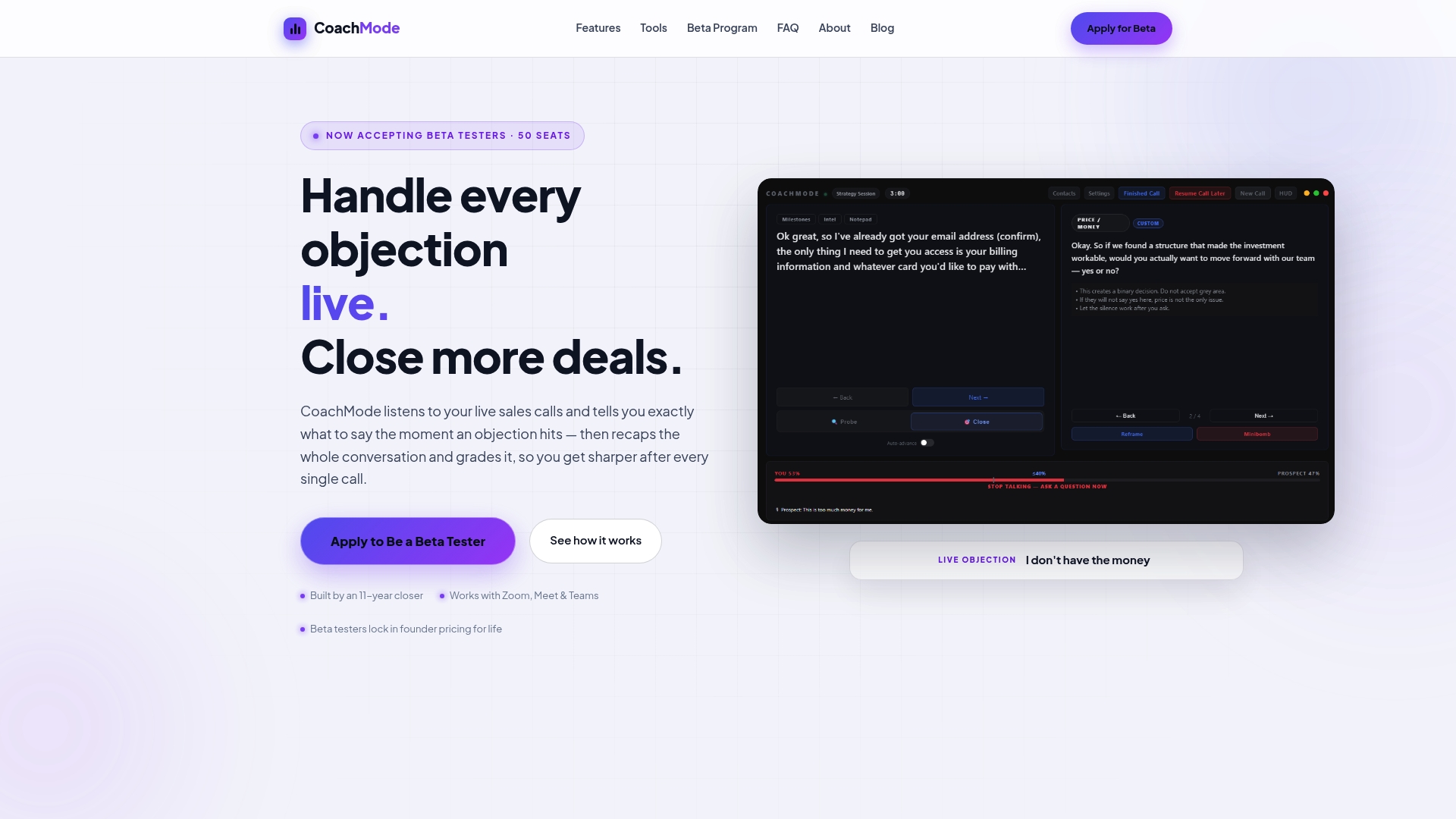
Built specifically for high-ticket closers, Getcoachmode listens to your live Zoom conversation and surfaces the right response the moment an objection lands, tracks discovery and buying signals as they come up, and grades every call afterward so you can see exactly where a rep’s skills need work. It’s the layer that sits on top of whatever note-taking setup you already use, handling the moments a transcript can never help with. If your close rate depends on how well reps handle pushback in real time, that’s worth testing directly. Start with Getcoachmode’s AI sales coaching and see how it performs on your next live call.
Sources
- AI note taker: Your AI Meeting Assistant | Zoom
- Meeting Summaries, Transcript, Video Playback, and Real-Time Insights for Zoom Meetings | Read
- Getting started with Zoom AI features